
How can I create Digital Business Cards in bulk using an existing card as a template?
You can use an existing Digital Business Card as a template to create cards for your team with the same card design, QR code design, and structure. Each card can have its own employee details.
Step 1: Copy the existing card to a bulk batch
- Log in to your QRCodeChimp account and go to the Dashboard.
- Under QR Codes List, locate the Digital Business Card you want to use as a template.
-
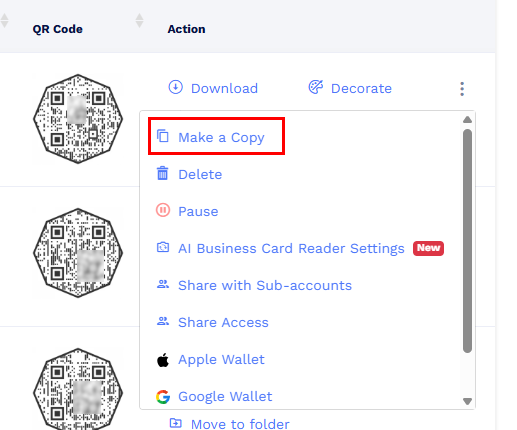
Click the three-dot menu (⋮) and select Make a Copy.
-
In the pop-up, enter a name for your new bulk batch and select the Bulk upload checkbox.
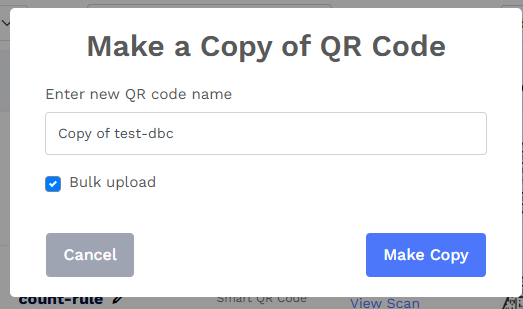
- Click Make Copy.
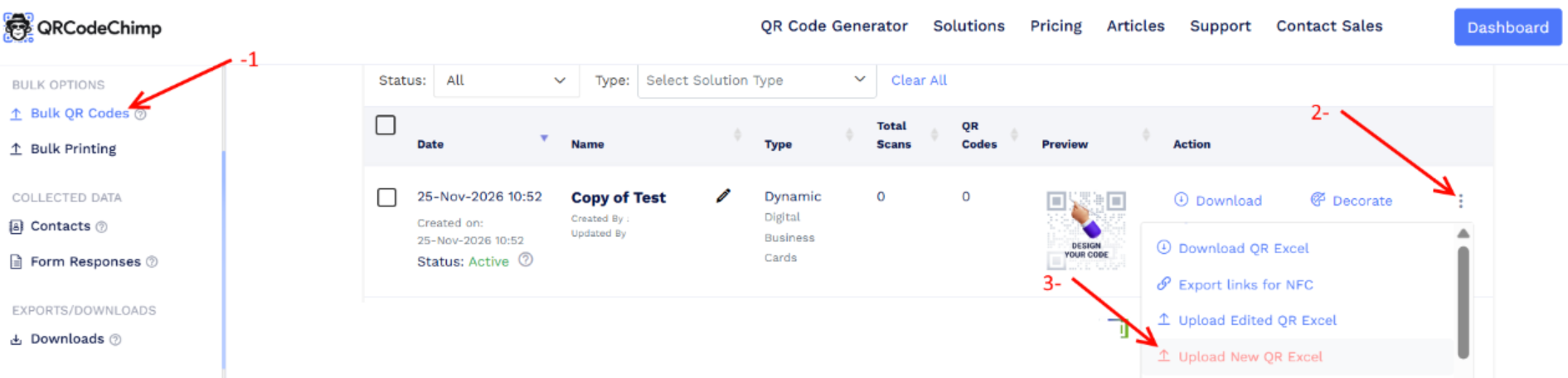
This creates an empty bulk batch using your existing card’s design and settings. You will be automatically redirected to Bulk QR Codes. If you are not redirected, select Bulk QR Codes from the dashboard’s left menu.
Step 2: Add employee details and create the cards
- Locate the newly created batch under Bulk QR Codes.
- Click the three-dot menu (⋮) and select Upload New QR Excel.
-
Click Download Sample File.
- Fill in the details for each card in the downloaded file, using a separate row for each card.
- Save the completed file and upload it back.
The cards will be created using the copied template and the details provided in the uploaded file.