
How do I share access to my QR codes?
The Share Access feature allows you to give team members or clients controlled access to specific QR codes without sharing your account login details.
You can use this feature to collaborate with your team or allow clients to manage their own QR codes securely.
This feature is available for:
How to share access
- Log in to your Dashboard.
- Locate the QR code you want to share.
-
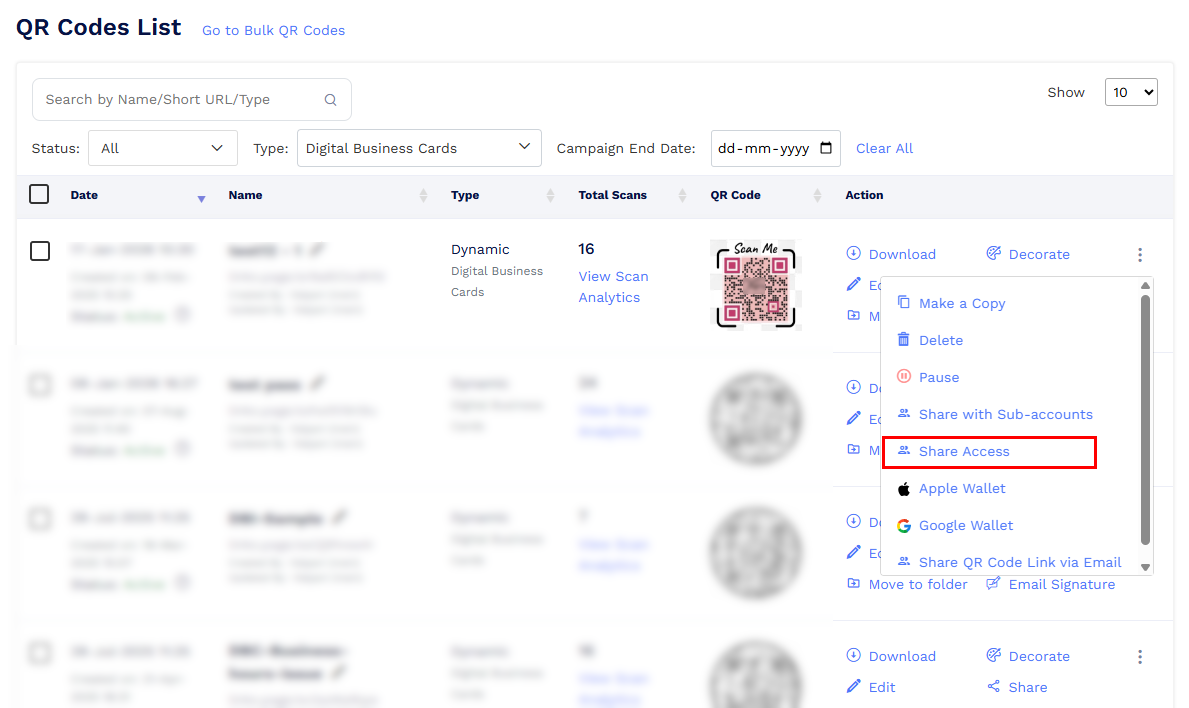
Click the three dots icon next to the QR code and select Share Access.
- Enter the recipient’s email address.
- Select the required access permission.
-
Click Share.
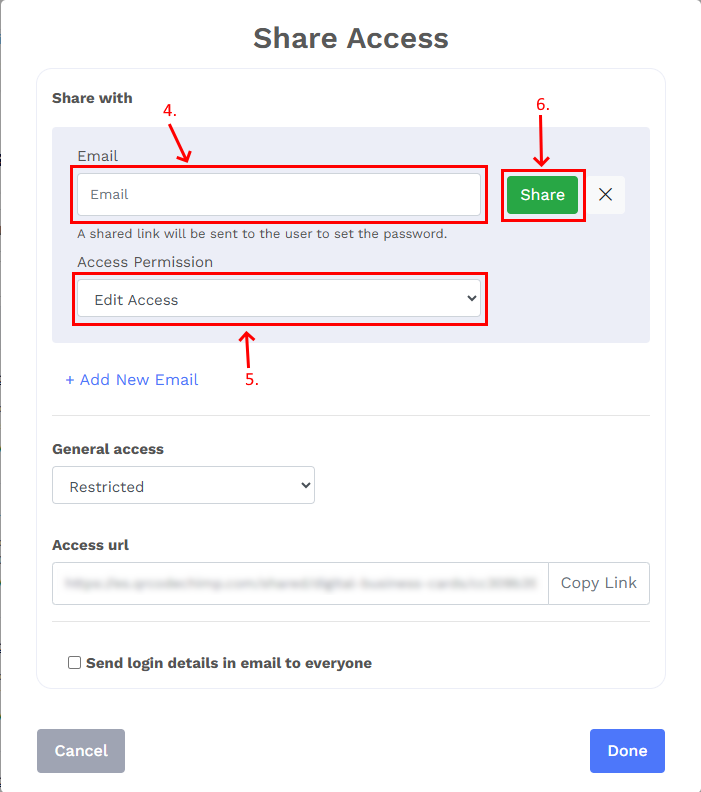
The recipient will receive an email with a link to set their password and access the shared QR code.
Access permission levels
You can choose from the following access options:
Edit Access
Allows full editing of the QR code and access to analytics, contacts, and form responses.
View Contacts and Responses
Allows viewing analytics and collected contacts or form responses. Editing is not permitted.
View Analytics Only
Allows viewing scan and performance data only. No editing or data access is allowed.
This ensures you can share control while keeping your account secure.