
How can I make one QR code show content in the user’s preferred language?
You can use the Language condition in Smart QR Code to direct users to different language versions of your content based on their browser’s language setting.
For example, the same QR code can open an English webpage for English-language browsers and a Spanish webpage for Spanish-language browsers.
Set up language-based destinations
- Open the Smart QR Code generator to create a new QR code, or open an existing Smart QR Code for editing from your dashboard.
-
Under the relevant scan destination, enter the link to a language version of your content.
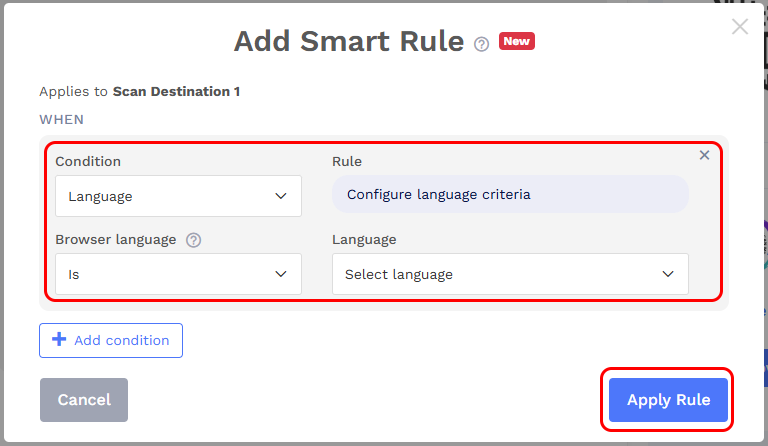
Click + Add Smart Rule, or Edit Smart Rule if a rule already exists.
Select Language under Condition.
Under Browser language, choose:
- Is: Matches browsers using the selected language.
- Is not: Matches browsers using a different language.
-
Select the language and click Apply Rule.
- Click + Add More to configure destinations for other languages, then save your Smart QR Code.
Set a fallback destination for scans that do not match any of your language rules.
Note: Smart QR Code does not translate your content. You must provide the language versions you want users to open. Matching is based on browser language, which may differ from the user’s spoken language or location.