
How do I create one QR code that redirects users to different destinations?
You can use Smart QR Code to redirect users to different destinations based on conditions such as their device, language, location, scan time, or scan count.
For example, one QR code can open a lunch menu during lunch hours and a dinner menu in the evening.
Set up your destinations and rules
-
Open the Smart QR Code generator.
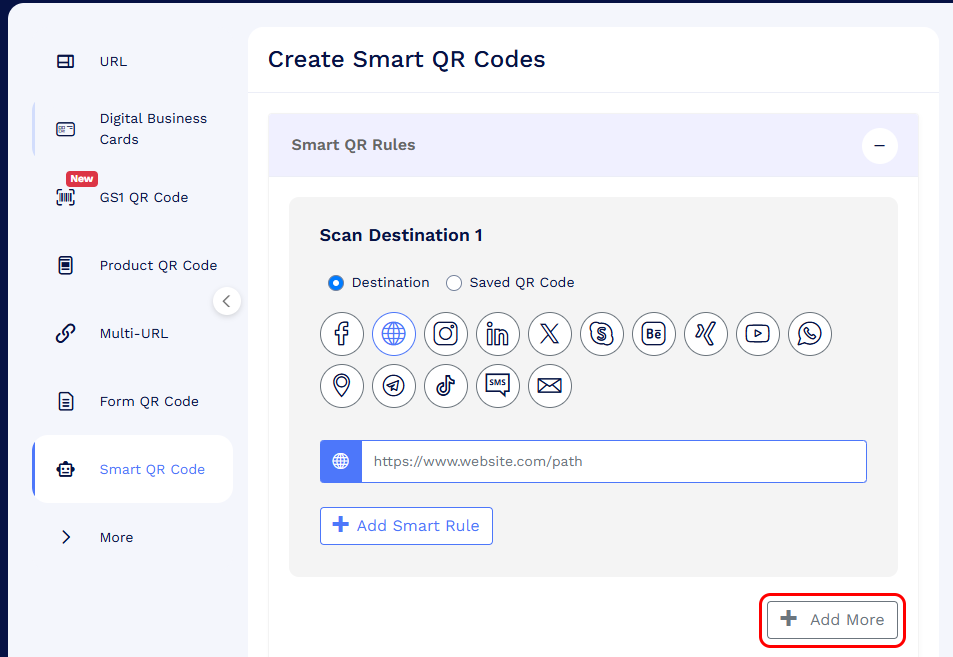
Under Scan Destination 1, choose one of these options:
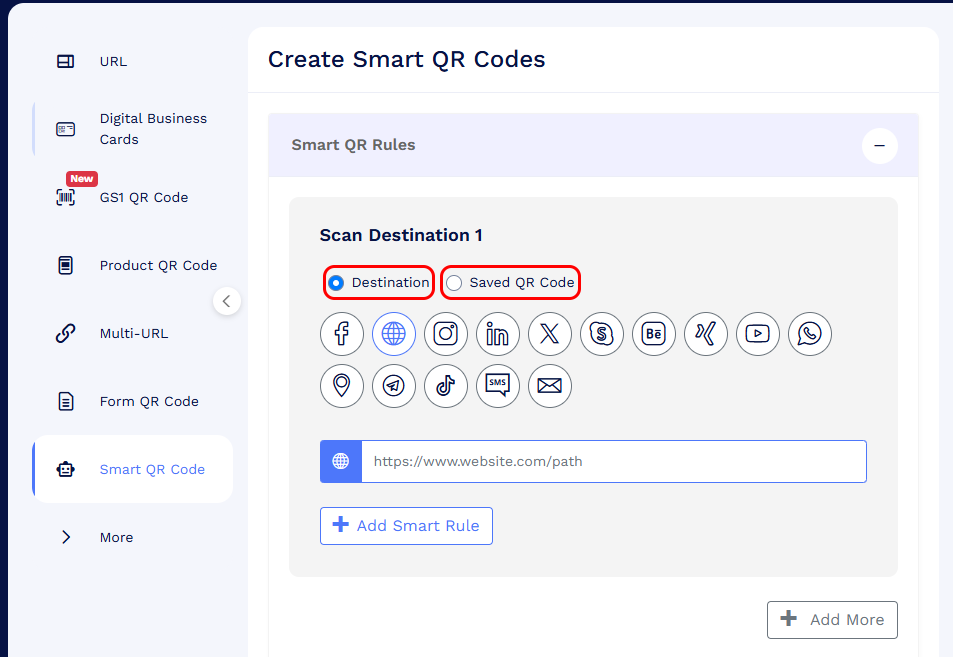
- Destination: Select the type of content or action you want to open, such as a website, WhatsApp chat, or email. Then enter the required URL or details.
-
Saved QR Code: Select a QR code you have already created in your account, such as a Digital Business Card, Form QR Code, or Product QR Code. Users will be directed to that QR code’s content.
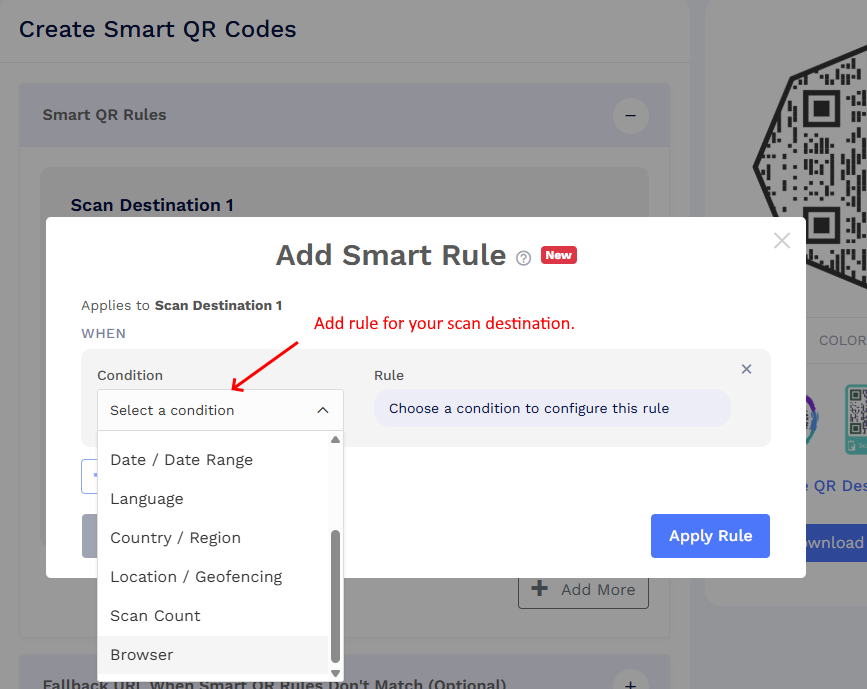
Click + Add Smart Rule. Select a condition and configure when this destination should open. Available conditions include Device, Day, Time, Date / Date Range, Language, Country / Region, Location / Geofencing, Scan Count, and Browser.
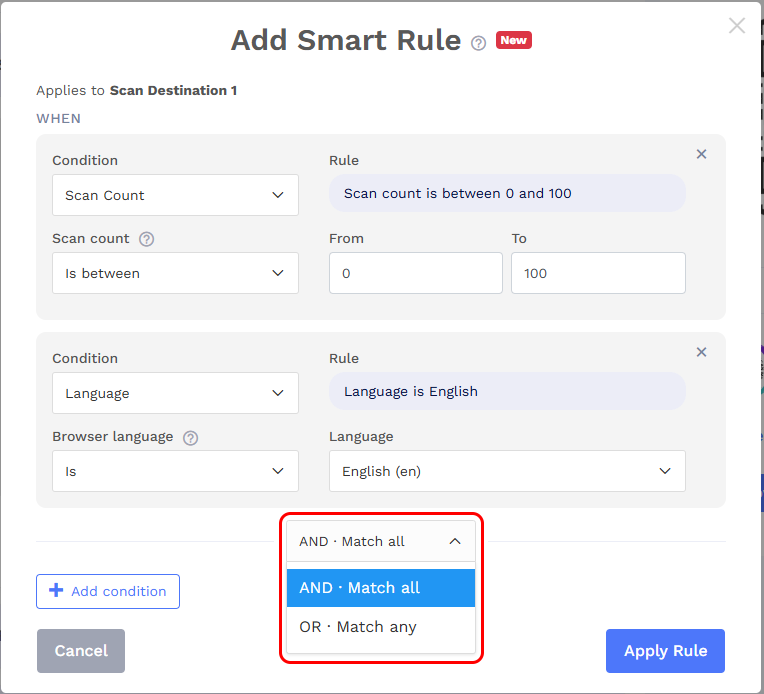
To combine conditions for the same destination, click + Add condition and select:
- AND · Match all: Every configured condition must match.
-
OR · Match any: At least one configured condition must match.
-
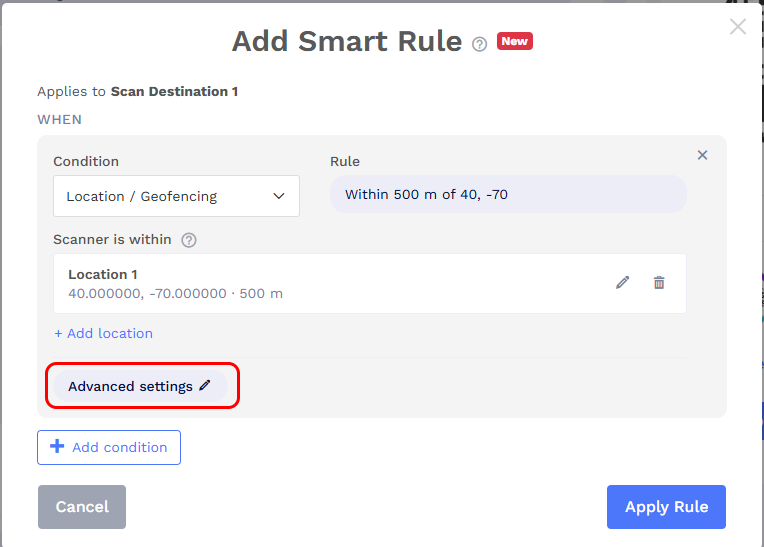
If you use Location / Geofencing, review its Advanced settings to configure the pre-location message and what happens when precise location is unavailable.
- Click Apply Rule.
-
Click + Add More to add another scan destination and configure its rules. Destinations are evaluated from top to bottom, and the first matching destination opens. Place more specific rules before broader rules.
Set a fallback destination
Expand Fallback URL When Smart QR Rules Don’t Match (Optional) and enter a destination or choose a saved QR code.
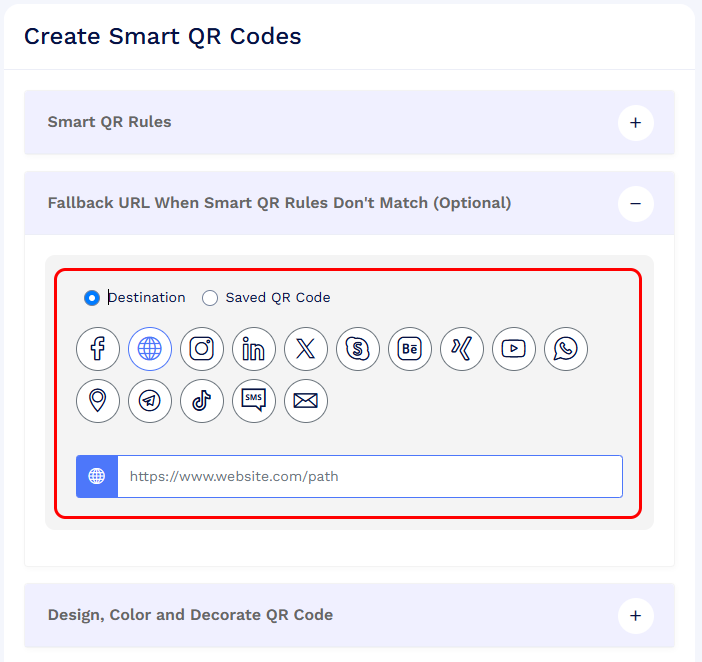
This destination opens when none of your scan destinations’ rules match. If you leave it unset, users see the No QR Rule Applicable page when no rules match.
Save your Smart QR Code
Customize the QR code’s design if needed, then click Save QR Code. Enter a campaign name and click Save.
You can update its destinations and rules later without changing the printed QR code.