
How do I set up a PDF gallery QR code and upload multiple PDFs in it?
To set up a PDF gallery QR code and upload multiple PDFs, log in to your QRCodeChimp account and follow the steps below:
- Create a new PDF Gallery QR Code or open an existing one to edit.
-
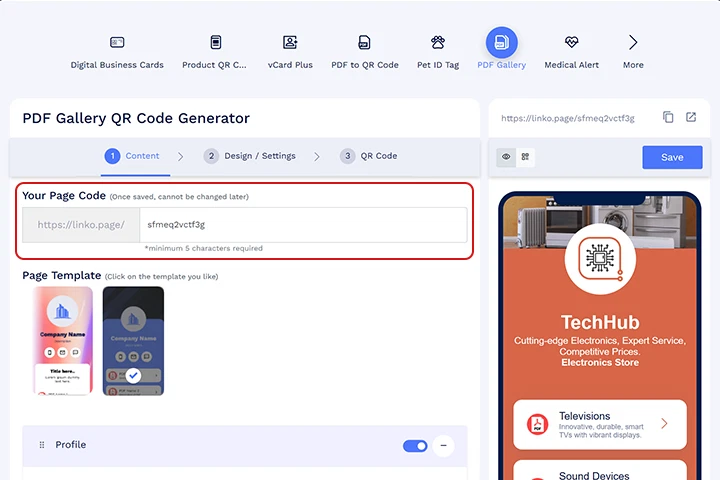
In Your Page Code, enter a unique page code (this becomes part of the page URL). Page code can not be edited once the QR code is saved.
-
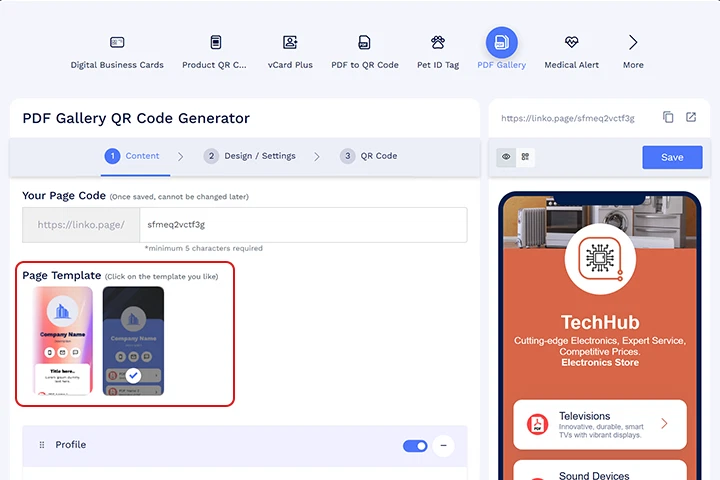
Under Page Template, select the template you want to use.
- In the Profile section, do one of the following:
- Add a profile image, name, heading, and subheading
- Turn off the Profile toggle if you do not want the profile section to appear on the page
-
Enable the Title and Description toggles if you want to display additional information at the top of the PDF gallery section.
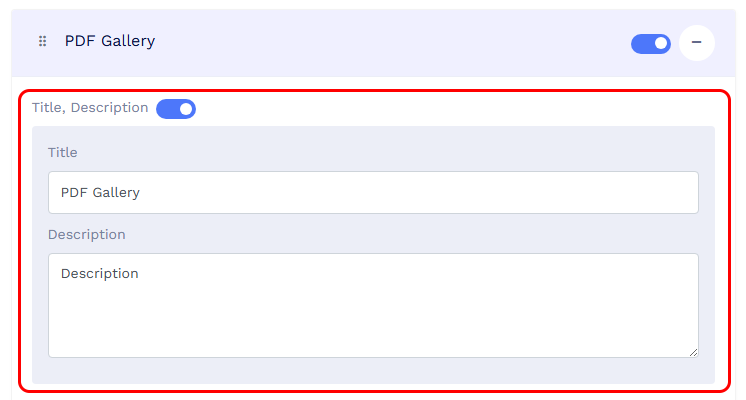
Enable the 'Title, Descirption' toggle to add more information about your PDF files. - Add your first PDF using one of the following options:
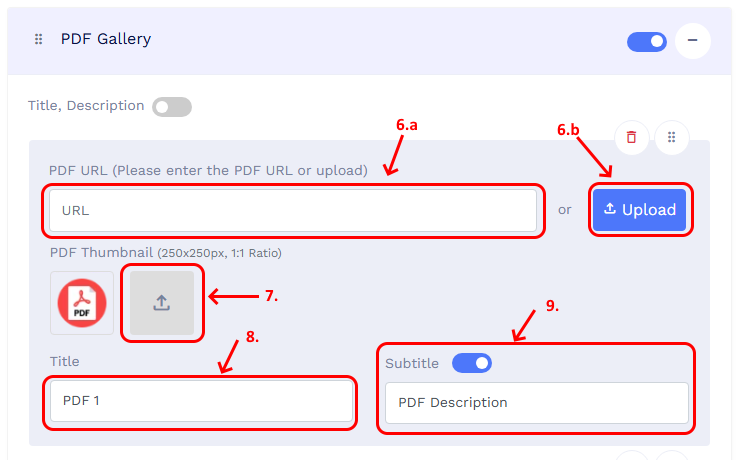
- Click Upload to upload a PDF from your device. The file is uploaded to your File Manager, and the PDF link is automatically added to the PDF URL field.
- Paste the direct URL of a hosted PDF. If you are using platforms like Google Drive, make sure the file has open or public access.
-
If you want to display a custom thumbnail for the PDF, upload a PDF thumbnail image. For best results, use a 250 × 250 pixel image with a 1:1 ratio.
If no thumbnail is uploaded, a default thumbnail is shown.
- Enter a Title for the PDF.
-
Enable Subtitle if needed, then add a short description.
-
To upload additional PDFs, click + Add PDF and repeat steps 6 to 9 for each PDF.
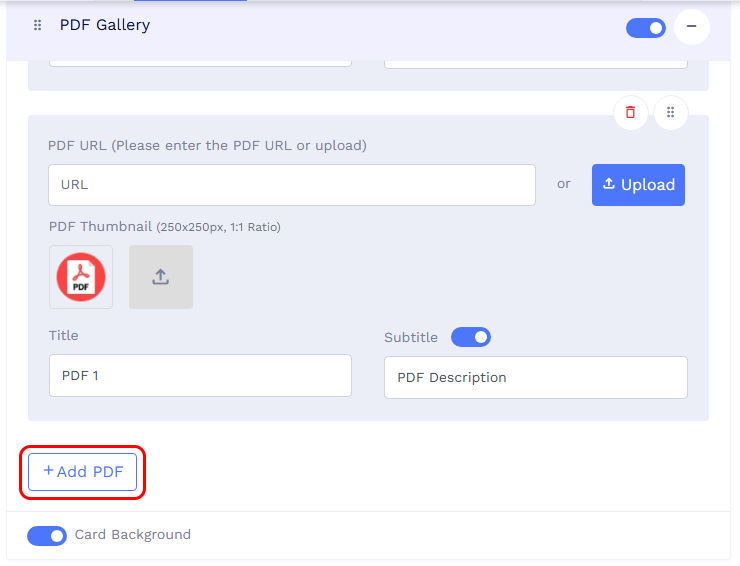
- Reorder PDFs using the drag option or remove any PDF using the delete icon if required.
-
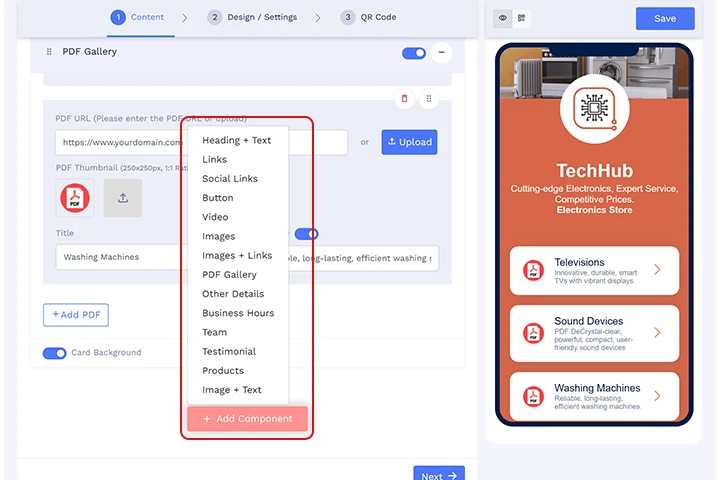
If you want to add more sections to your page, click Add Component and select the components you want to include.
-
Click the Design/Settings tab to customize the page design. Here, you can update the background image, colors, font styles, and other visual elements of your PDF gallery page (optional).
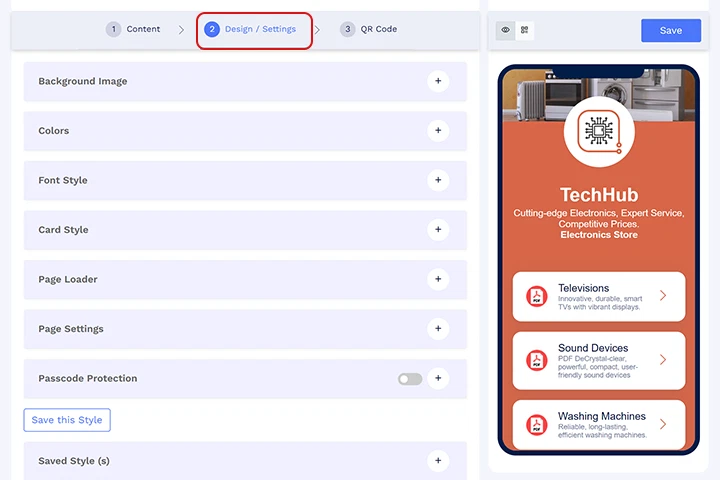
- Enable Passcode Protection if you want only the people with whom you share the passcode to access your PDFs.
-
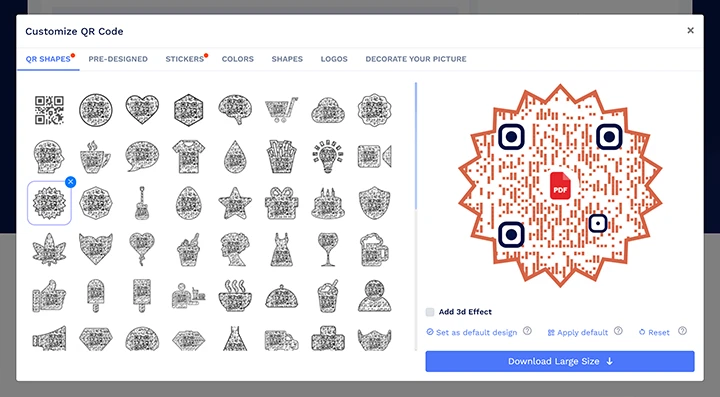
Open the QR Code tab to customize the QR code design. You can change the QR code shape, colors, and add a sticker or logo if required (optional).
- Click Save to apply the changes.
After saving, users can scan the QR code to view and access all PDFs in the gallery.