
How can I redirect users to different links based on their location using Smart QR Code?
Use the Location / Geofencing condition in Smart QR Code to direct users to a particular destination when they are within a defined radius of a location.
For example, you can show an in-store offer to users near your store and direct other users to your website.
Configure the location
- Open your Smart QR Code in edit mode.
- Under the relevant scan destination, enter the destination details or select a saved QR code.
- Click + Add Smart Rule, or Edit Smart Rule if a rule already exists.
- Select Location / Geofencing under Condition.
-
Under Scanner is within, click + Add location.
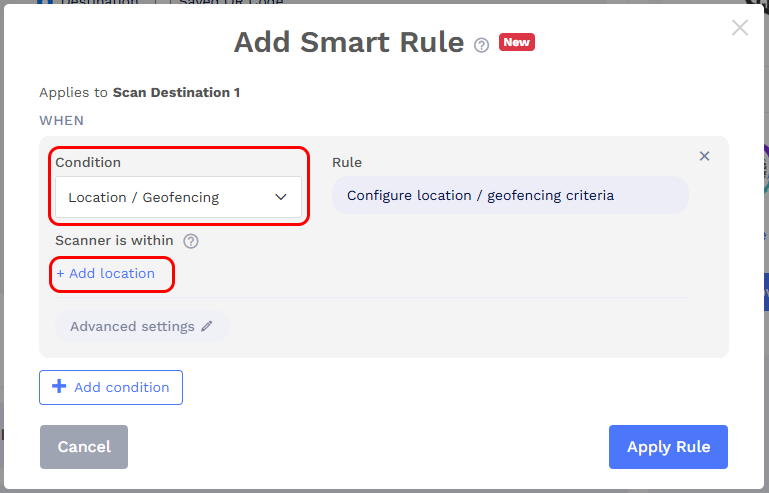
-
Enter the Latitude, Longitude, Radius, and Unit. You can also enter an optional Location name.
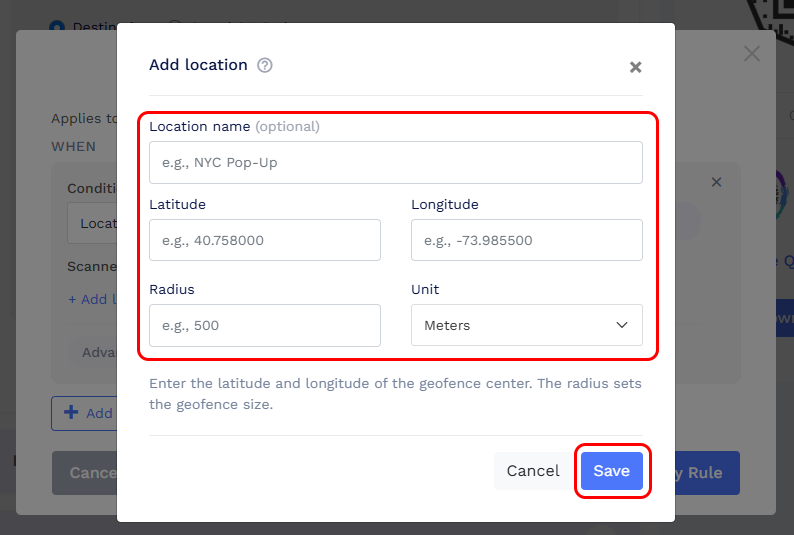
- Click Save to add the location.
- Repeat steps 5 to 7 to configure multiple locations for one scan destination.
The coordinates define the center of the area, and the radius defines how far it extends. You can add multiple locations to match scans within any of the configured areas.
Configure advanced settings
Open Advanced settings and review:

- Pre-location message: Customize or disable the message shown before requesting location permission.
- When precise location isn’t available: Choose Use fallback URL, Show a message, or Use approximate location based on IP.
If you select Show a message, configure the message, button label, and Continue to setting. If you select the IP-based option, configure the approximate-location rules.
Click Apply Rule, then save your Smart QR Code.
Note: A user outside the configured areas does not match this geofencing condition. Your other conditions, scan destinations, and fallback configuration determine where that user is directed. Geofencing does not automatically block access to the entire Smart QR Code.