
How do I create static QR codes in bulk?
You can create static QR codes in bulk in QRCodeChimp for solutions that support bulk creation and static QR codes.
Steps to create static QR codes in bulk
-
Go to the QR code solution you want to use and select Bulk Upload.
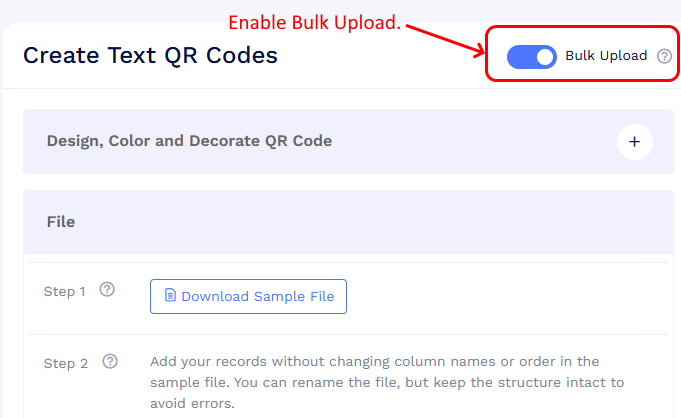
-
Click Download Sample File.
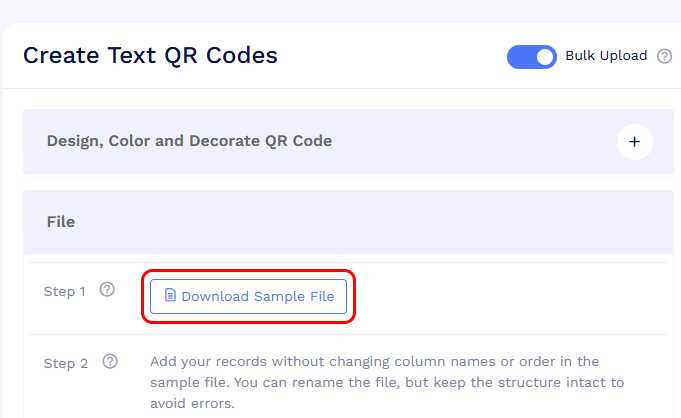
- You will be prompted to save the bulk batch before downloading the sample file.
- Enter a name for the bulk batch.
-
If the selected solution supports both static and dynamic QR codes, deselect Make dynamic (for tracking & analytics) to create static QR codes.
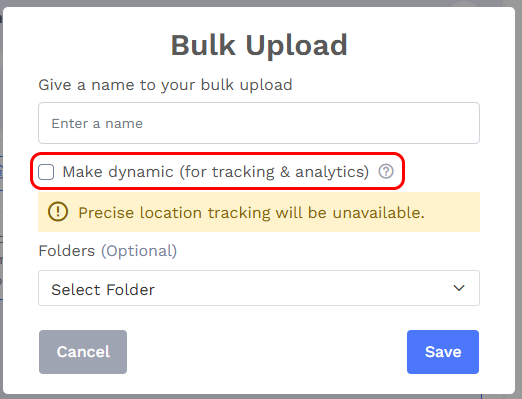
Deselect Make dynamic if available. - Select a folder if required, and click Save.
- Download the sample Excel file.
- Enter the required data for each QR code in the Excel file.
- Upload the completed file and proceed with bulk creation.
- Once processed, download the generated QR codes as needed.
Note: For static-only solutions, you do not need to deselect Make dynamic.
Static QR code batch limit
You can create up to twice your plan’s dynamic QR code limit as static QR codes in a single bulk batch.
For example, if your plan allows 300 dynamic QR codes, you can create up to 600 static QR codes in one bulk batch.
You can check the dynamic QR code limit for your plan on the QRCodeChimp Pricing page.
Important points
- For solutions that support both static and dynamic QR codes, make sure Make dynamic (for tracking & analytics) is deselected before saving the bulk batch.
- Static bulk QR codes do not support scan tracking and analytics.
- Static QR codes created in bulk cannot be edited after creation.
- If you may need to update the QR code content later, create the bulk as dynamic instead.