
How can I create digital business cards only for selected Entra ID users?
To create digital business cards only for selected Entra ID users in Microsoft Entra ID integration, select Generate for uploaded email IDs in Step 4: Select How Digital Business Cards Will Be Created.
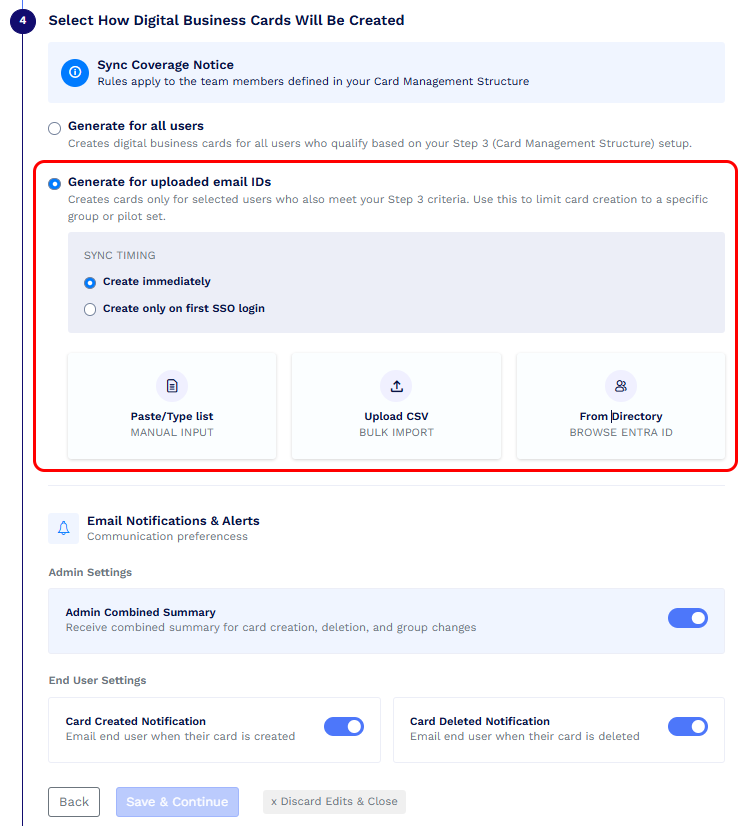
Step 3 determines which users are eligible for card creation based on the group or filter criteria you configure. Step 4 lets you further narrow that eligible set by selecting the specific users for whom cards should be created.
For example, if your Step 3 criteria include 500 employees but you currently want to create cards for only 100 of them, select Generate for uploaded email IDs and add those 100 users.
How can I select users?
You can add users in three ways:
-
Enter email addresses manually
Click Paste/type list to add email addresses manually.
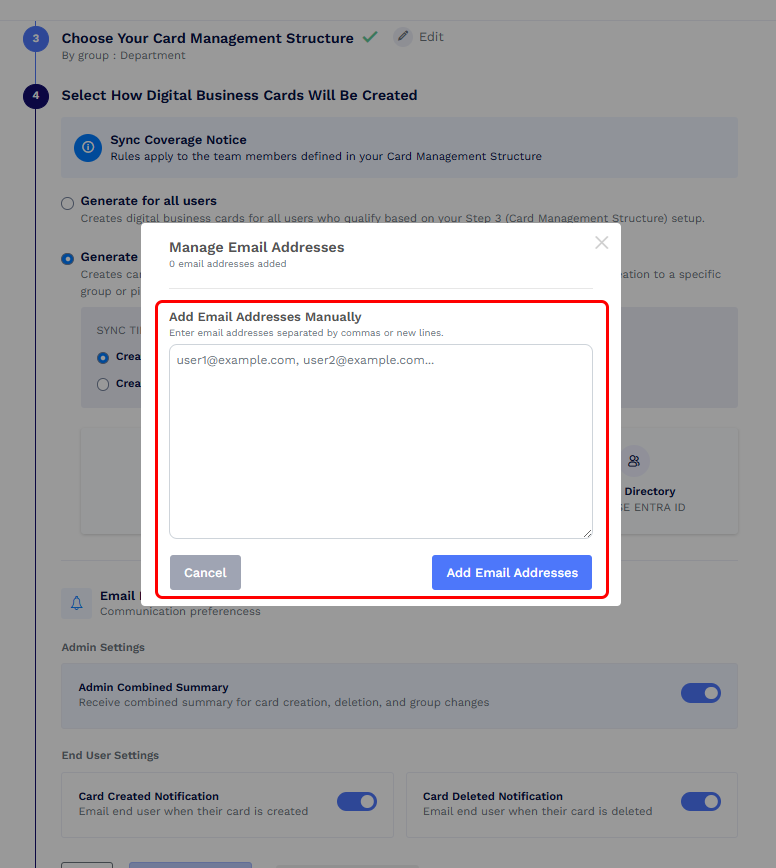
Paste or type the email addresses. In the Manage Email Addresses window, under Add Email Addresses Manually, enter the email addresses separated by commas or new lines. Then click Add Email Addresses.
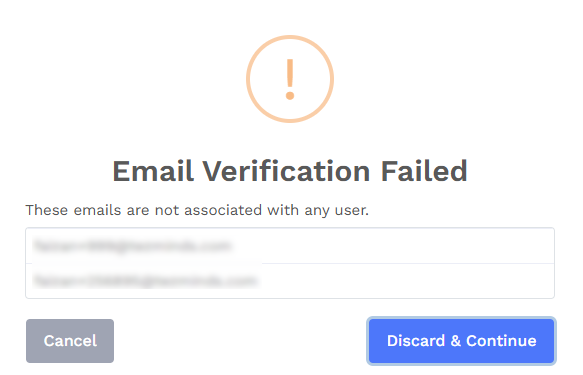
QRCodeChimp verifies that the users associated with the entered email addresses meet the Step 3 criteria. If any email addresses do not meet those criteria, an error is displayed, and you can discard them.
-
Select users from the Entra ID directory
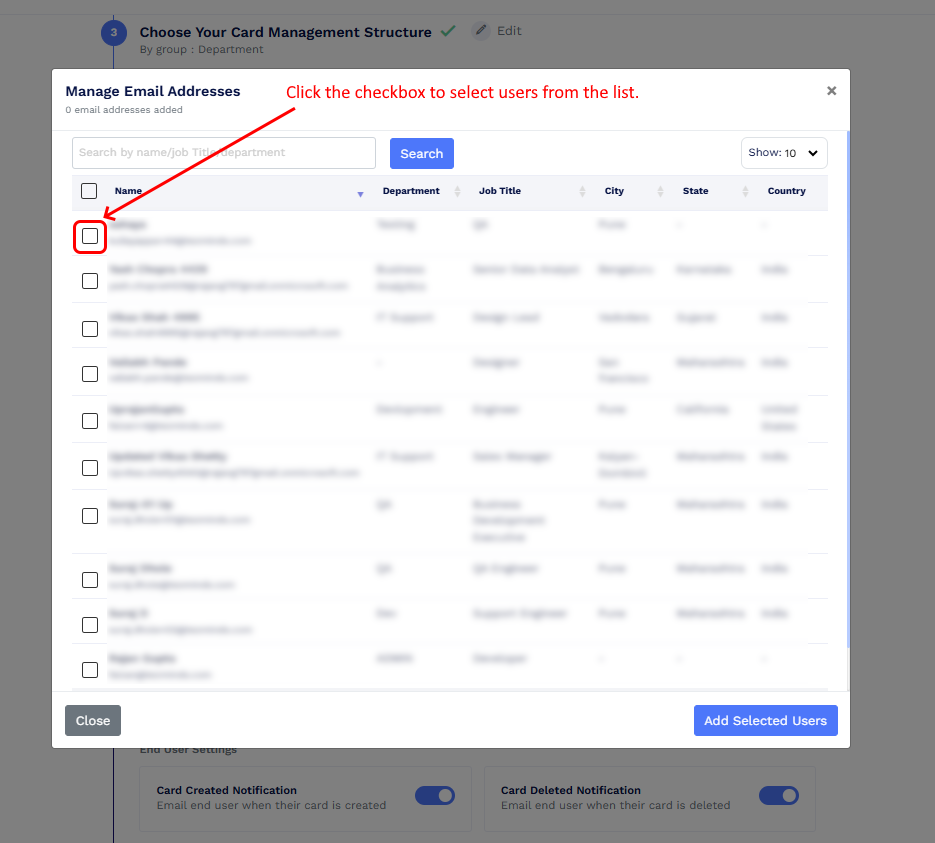
Select the From Directory option to open the directory users list and select the required users. Only users who meet the group or filter criteria configured in Step 3 are displayed.
Select the checkboxes next to the required users and click Add Selected Users.
-
Upload a CSV file
Click Upload CSV file, then click Select CSV File and upload a CSV file containing a column of email addresses.
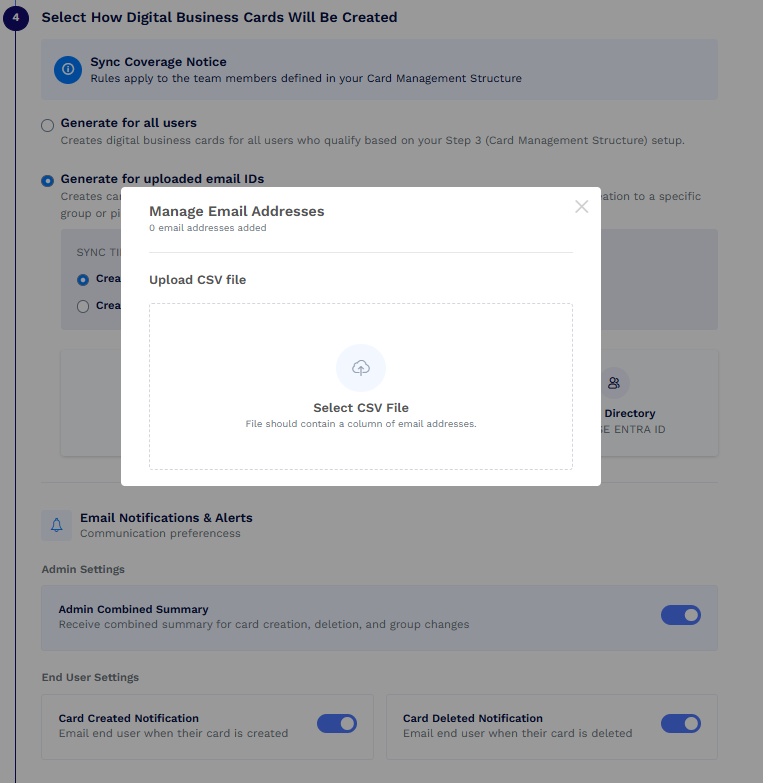
When email addresses are entered manually or uploaded through a CSV, QRCodeChimp checks whether the corresponding users meet the Step 3 criteria. If some users do not meet the criteria, an error is shown, and you can discard those email addresses.
What happens when new users meet the Step 3 criteria?
New users are not automatically included when Generate for uploaded email IDs is selected.
You need to return to the integration settings and explicitly add those users if you want digital business cards to be created for them.
If you want all current and future users who meet the Step 3 criteria to be included automatically, use Generate for all users instead.
Can I update the selected users later?
Yes. You can return to the integration settings and add or remove users from the selected-user list.
Important: If you remove a user from the selected-user list, their digital business card will be deleted.
When should I use this option?
Use Generate for uploaded email IDs when you want to:
- Roll out digital business cards to selected employees first
- Create cards for only certain users within an eligible group
- Run a pilot before a wider rollout
- Introduce digital business cards in phases