
How do I create a GS1 QR Code?
Sign in to your QRCodeChimp account, go to the GS1 QR Code solution, and follow these steps:
Step 1: Enter GTIN (Mandatory)
Go to the GS1 Input section and enter a valid GTIN (numeric, 8 or 12 to 14 digits).

Step 2: Add Key Qualifiers (Optional)
Enter values for the key qualifiers that apply to your product:
- (22) Consumer Product Variant
- (10) Batch/Lot Number
- (21) Serial Number

You can leave any qualifier that does not apply blank. QRCodeChimp automatically keeps the qualifiers in the GS1-required sequence.
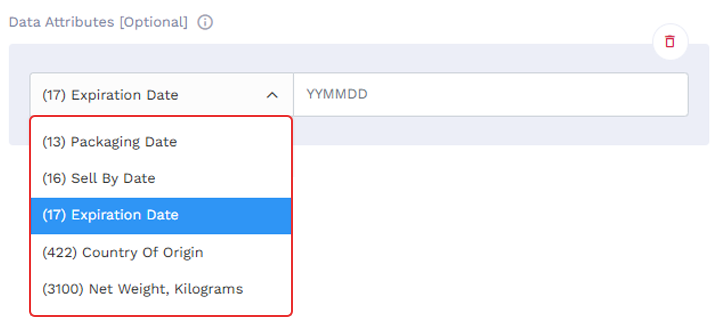
Step 3: Add Data Attributes (Optional)
- Choose attributes such as Expiration Date or Packaging Date from the dropdown and enter values in the required format.
-
Click Add More to include additional attributes.
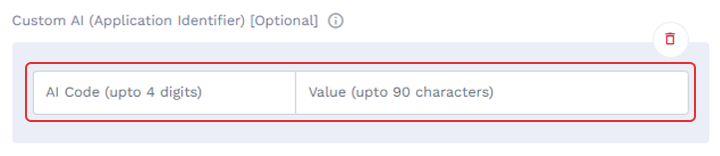
Step 4: Add Custom AI (Optional)
- Enter custom Application Identifiers and their values, if needed.
-
Click Add More to include additional entries.
Step 5: Configure GS1 Output
Select the destination you want users to access when they scan the GS1 QR code. The available output methods are:
- URL
- Product Page
- PDF (Dynamic)
- PDF Gallery
- App Download
- Multi-URL
If you select URL, enter the destination URL.
For Product Page, PDF (Dynamic), PDF Gallery, App Download, or Multi-URL, select the corresponding QR code from your account or create a new one.

Step 6: Customize the QR Code (Optional)
Adjust the design, colors, or add a logo as needed.

Step 7: Save the QR Code
Click Save to create your GS1 QR Code.
