
How do I customize the background color of my Google Wallet digital business card pass?
You can customize the background color of your Google Wallet pass while creating a new digital business card or editing an existing one. This color setting applies only to the Google Wallet pass and does not affect the colors of your digital business card.
Customize the Google Wallet background color while creating or editing a card
- Create a new digital business card using the Digital Business Cards solution, or open an existing card for editing from the Dashboard.
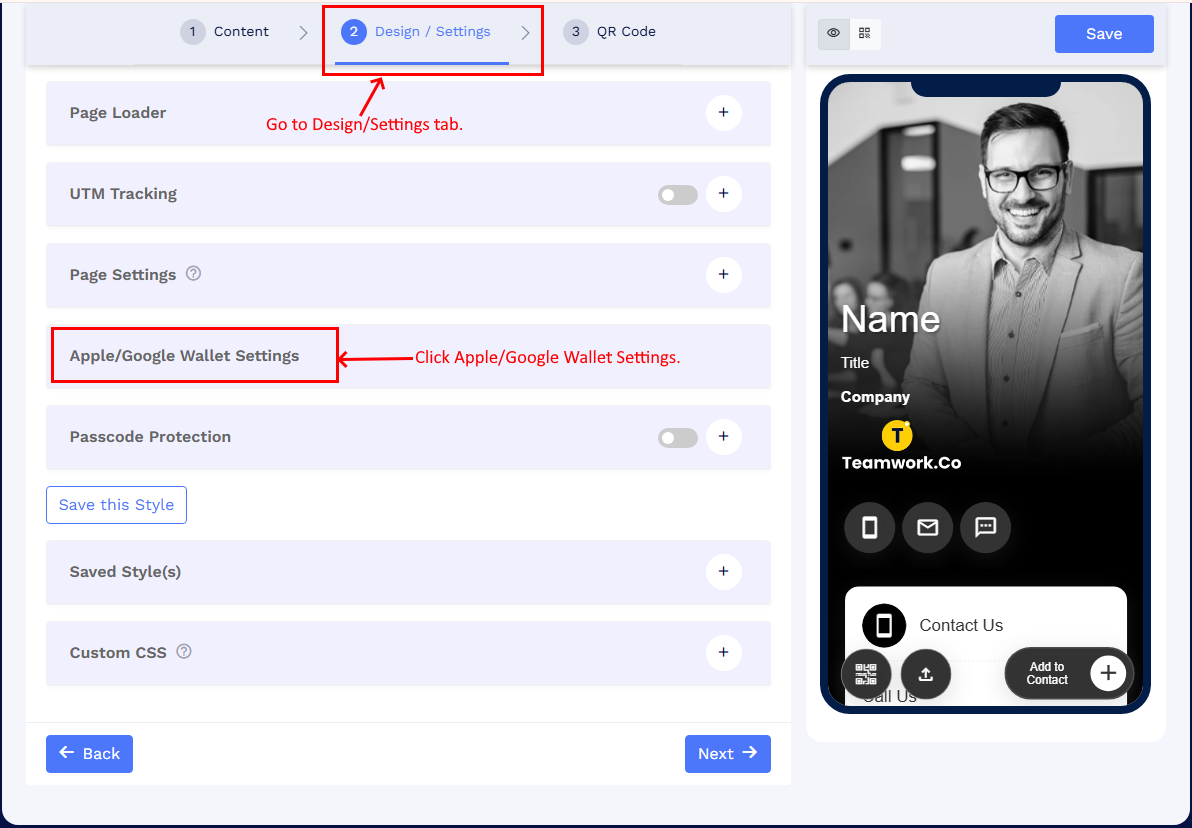
- Go to the Design / Settings tab.
-
Click Apple/Google Wallet Settings.
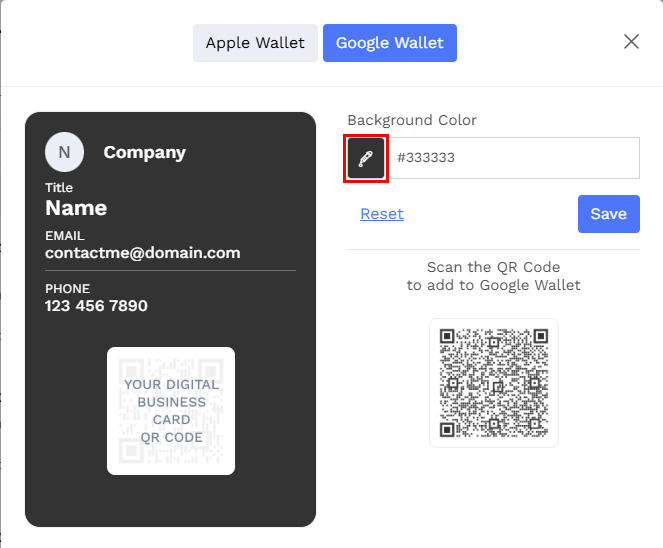
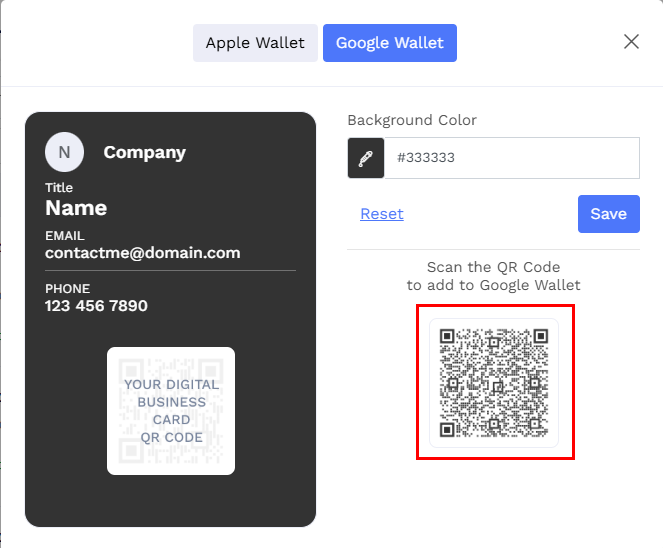
- A pop-up will open where you can customize the Google Wallet background color. The preview on the left shows how your Google Wallet pass will look with the selected color.
-
Click the color icon under the background color to open the color palette.
-
Select or customize your color in the palette and click Choose.
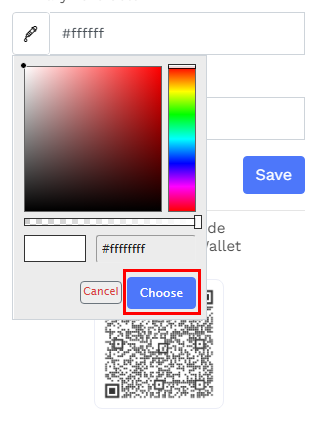
Customize and select your preferred color and click Choose. -
Click Save to apply the selected background color.
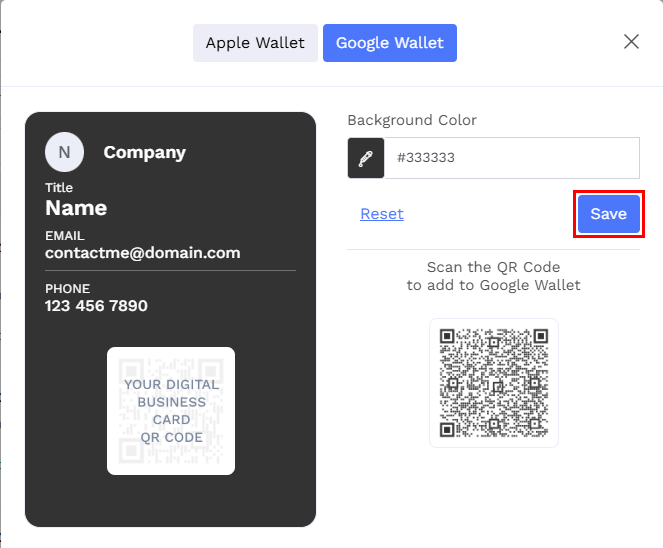
Click 'Save' to apply changes. - Click Reset to restore the default wallet colors based on your selected digital business card template.
-
Update Google Wallet colors for an existing card from the Dashboard
- Go to your Dashboard and locate the digital business card.
-
Click More Options (:), and select Google Wallet.
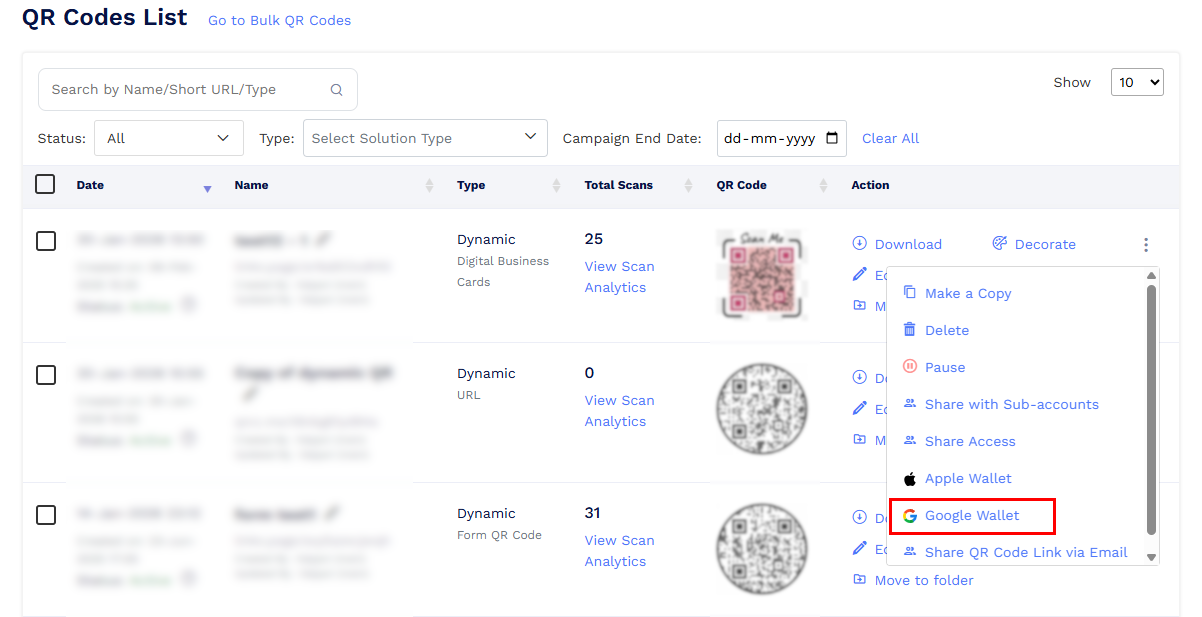
- A pop-up will open where you can customize the Google Wallet pass background color. The preview on the left shows how your Google Wallet pass will look with the selected color.
- Customize the colors and click Save.
-
After saving, scan the QR code shown in the pop-up using your Android device and add the digital business card to Google Wallet with the updated background color.
Important notes
- Color changes are visible in the preview before saving, but they are applied only after clicking Save.
- These color settings affect only the Google Wallet pass and do not change the design or colors of your digital business card.
- If the Google Wallet pass has already been added, the changes will not update automatically. To apply the updated colors, save the digital business card to Google Wallet again and replace the existing pass.