
Why do I see “ERR_CONNECTION_RESET” or “ERR_SSL_PROTOCOL_ERROR” after scanning my QR code?
These errors usually occur when the network or ISP blocks or interrupts the connection before the QR code destination can load.
We have found that this often happens due to ISP filtering at the DNS lookup level. Other possible causes include:
- Firewall, proxy, antivirus, or web security restrictions
- DNS or network routing issues
- SSL inspection or filtering
- Temporary network connectivity issues
Some ISPs may introduce restrictive rules, such as blocking sites that use redirection, where one URL points to another. Such filtering may happen at the router or DNS level.
QRCodeChimp continuously works to identify these ISP-related issues and get its domains whitelisted where required. However, new or updated ISP filters may occasionally cause the issue to reappear.
Troubleshooting steps
- Try opening the QR code URL directly in your browser. If you see the same error, the issue is related to accessing the URL rather than scanning the QR code.
- Scan the QR code using mobile data or a different Wi-Fi network.
- If the destination opens on another network, the issue is likely related to the original ISP, network, or security settings.
- If you use a VPN, proxy, antivirus web protection, or security software, temporarily disable it for testing to check whether it is blocking the connection.
- Note the name of your ISP or network provider.
- While connected to the affected network, open Command Prompt and run the applicable command:
ping www.qrcodechimp.pageorping www.linko.page
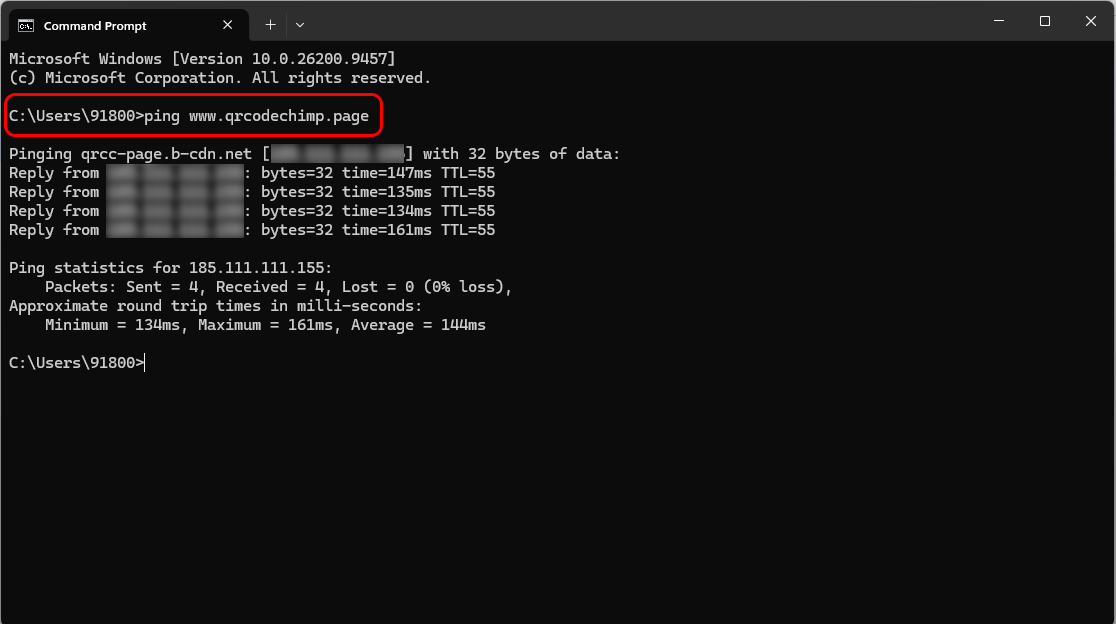
Take a screenshot of the result and share it with QRCodeChimp Support (support@qrcodechimp.com) along with your ISP details.
The ISP details and ping result will help our team identify possible DNS, routing, or network filtering issues.
Solutions
1. White-label your QR code URL
If your QRCodeChimp plan supports white labeling, you can use your own custom domain for QR code URLs instead of the default QRCodeChimp domain.
This can help if the ISP or network is specifically filtering the QRCodeChimp domain.
For setup instructions, see How to set up domain white labeling.
2. Use a public DNS resolver
If the issue is caused by DNS-level filtering, you can try using a public DNS resolver such as:
- Google Public DNS: 8.8.8.8 and 8.8.4.4
- Cloudflare DNS: 1.1.1.1
You can configure the DNS on your computer or Wi-Fi router.
Windows: Open your network settings, go to the properties for Internet Protocol Version 4 (TCP/IPv4), and set the preferred DNS to 8.8.8.8 and alternate DNS to 8.8.4.4.
macOS: Go to System Settings > Network, select your active connection, open the DNS settings, and add 8.8.8.8.
Mobile: Update the DNS settings for your Wi-Fi network or configure Private DNS, where supported.
If you need help setting this up, you can use an AI assistant, such as Gemini, and ask for step-by-step instructions based on your operating system, device type, or router model.
3. Contact your IT administrator
If you are using a corporate, school, hospital, or other managed network, contact your IT administrator and ask them to allow access to:
www.qrcodechimp.pagewww.linko.page
4. Contact your ISP or share details with QRCodeChimp Support
If the issue continues, contact your ISP and ask whether www.qrcodechimp.page or www.linko.page is being blocked or filtered at the DNS or network level.
You can also contact QRCodeChimp Support and share:
- Your ISP or network provider name
- A screenshot of the relevant ping result
- The QR code or URL where you are experiencing the issue
These details will help our team investigate the issue and, where required, contact the ISP to help resolve the filtering.