
How do I use the Card Scanner to capture contact details from paper business cards?
To use the Card Scanner:
-
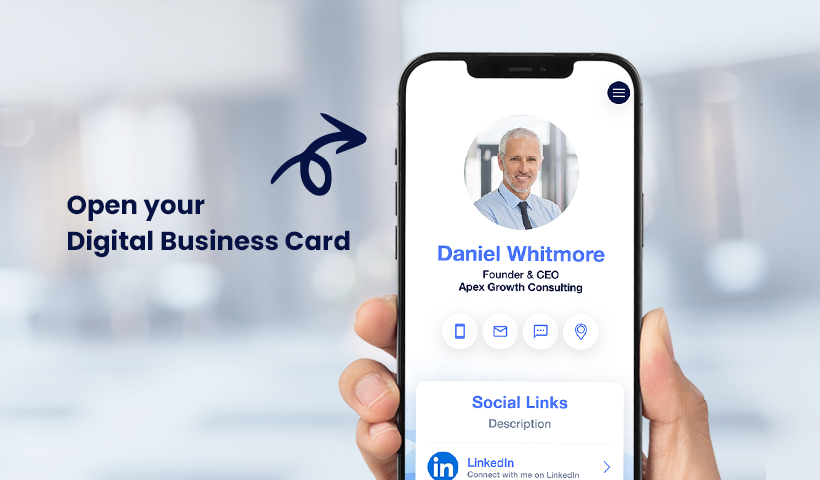
Open your digital business card on your device.
-
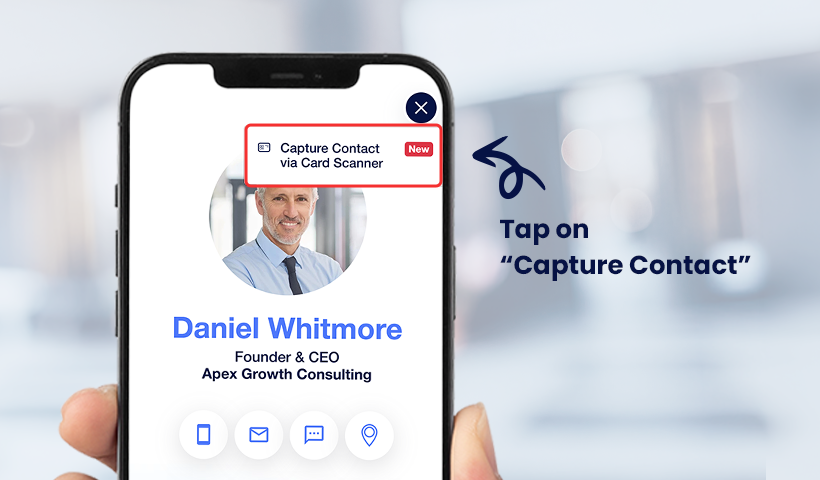
Tap “Capture Contact via Card Scanner.”
-
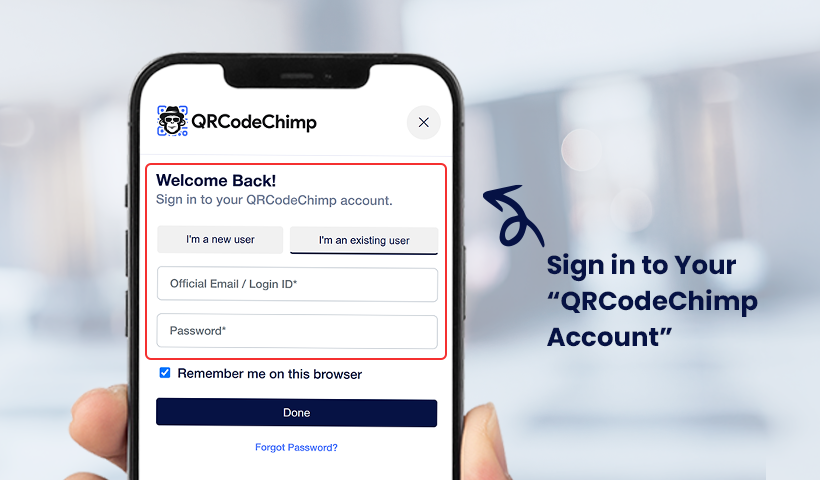
Log in to your QRCodeChimp account when prompted.
-
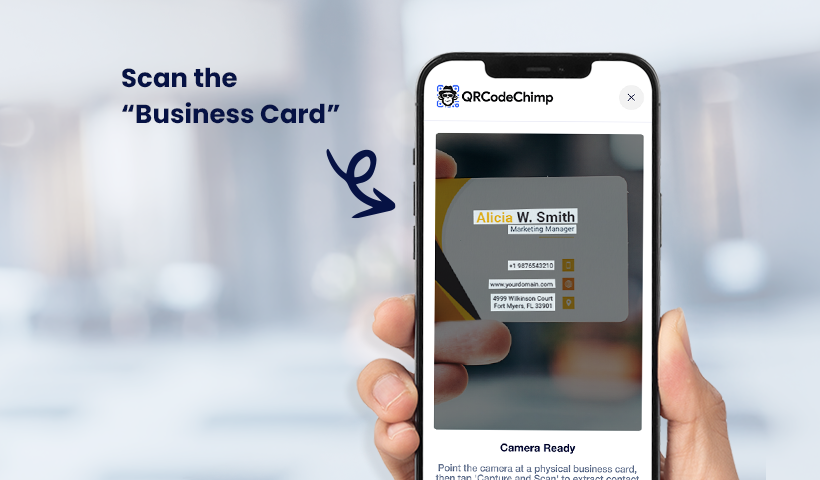
Scan the paper business card from which you want to add the contact details.
Note: If the opened digital business card does not belong to you, you will first be prompted to select a digital business card from your account to use the Card Scanner.
-
Review the details, edit if required, and click Save Contact to save the contact.
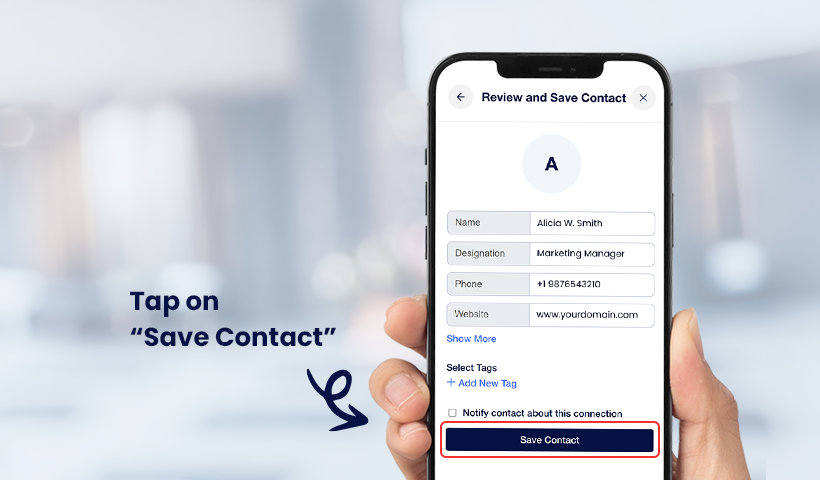
Tip: Click Show More to view additional default fields. You can also add new fields using Add New Field, and use tags to organize and easily identify contacts.
