
How can I remove the transparent background from my QR code?
To remove the transparent background and apply a solid background color, follow these steps:
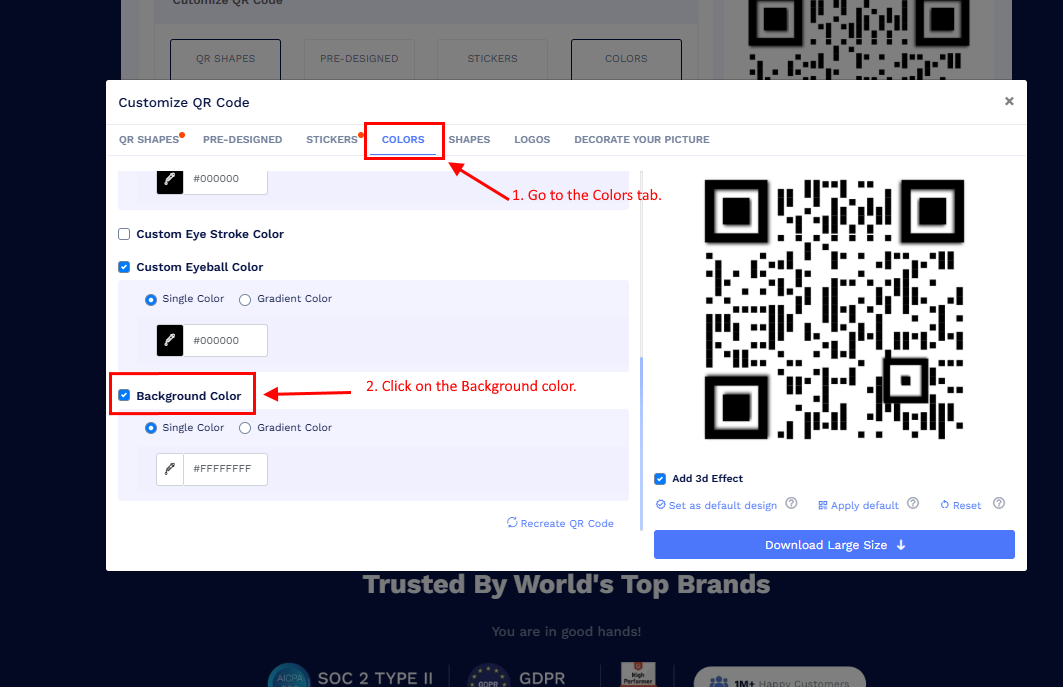
- Go to the COLORS tab on the Customize QR Code pop-up.
-
Click on Background Color to select it.
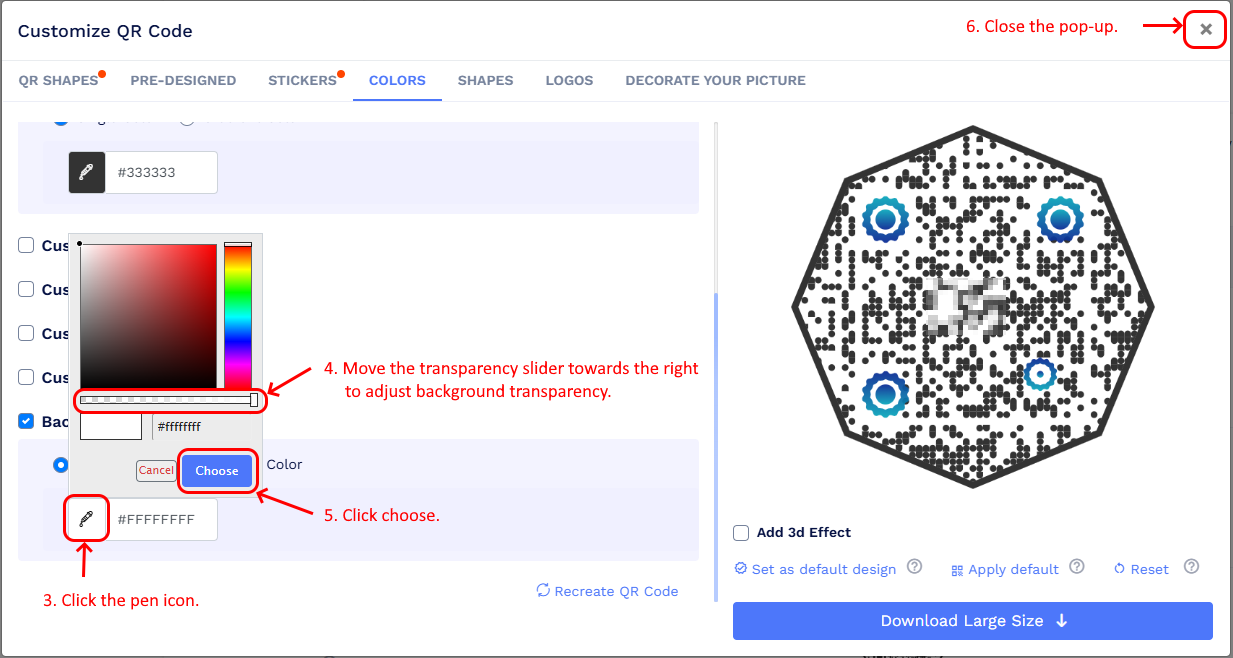
- Click the pen icon to open the color picker.
- Adjust the transparency slider by dragging it towards the right to remove transparency completely.
- Click Choose.
-
Close the Customize QR Code pop-up.
- Click Save and then download your QR code.
Your QR code will now have a solid background instead of a transparent one.