
How can I configure SMTP in QRCodeChimp to send system emails from my own email address instead of QRCodeChimp’s?
If you want system emails to be sent from your own email address instead of QRCodeChimp’s default email, you can configure SMTP in your account settings.
Important: The SMTP Setup feature is available for ULTIMA and above plans.
Follow the steps below:
- Log in to your QRCodeChimp account and go to Dashboard.
- Click on SMTP Setup under Settings on the left panel.
- Enable the SMTP Configuration option if not already enabled.
- Enter your email server details, such as SMTP server, port, username, password, and security type.
- Click Validate & Test to confirm the setup.
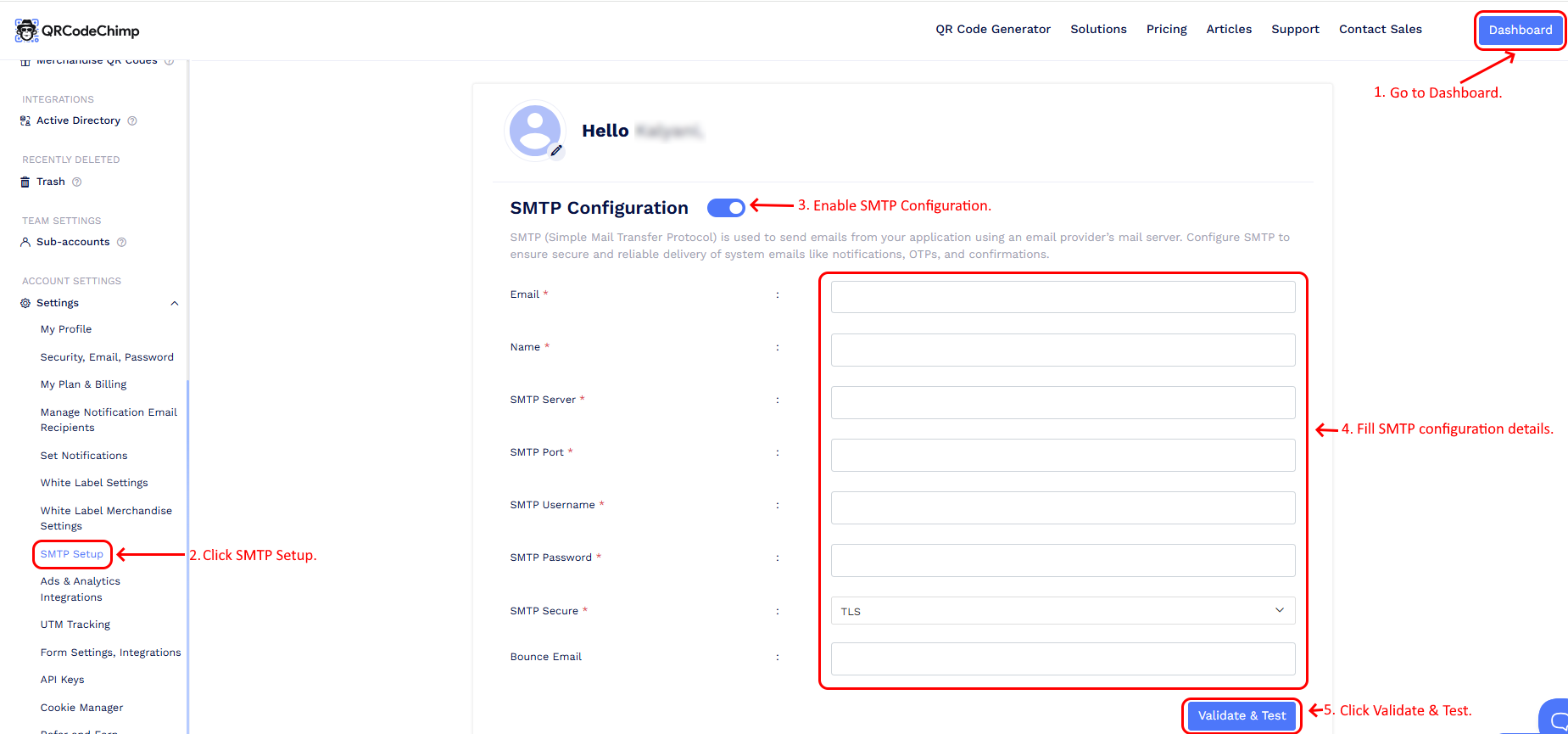
Upon successful validation, you will receive a test email from the configured email address to confirm that the SMTP setup is working correctly.
After validation, all supported system emails will be sent through your configured email domain. This applies to emails such as form submission notifications, share access emails, reset password emails for shared users, QR code sharing emails, event ticket emails, RSVP emails, and scan notification emails.
Note: If you need our support team to set up SMTP for you, we can assist with the configuration. This may be done at a one-time setup charge. Please contact support at support@qrcodechimp.com for further details.